Drag & Drop Files
The easiest way you can add files to a board is to simply drag them directly from the desktop or web. You can do this with a variety of supported files, such as JPEG, PDF, and word documents. You can download any file you have added to the board via the Export file function which is available in the right-click menu of the on-board item. It is also possible to download the whole board via the Export file function in the Board menu.
Insert Files from the Menu
You can access the Insert menu by clicking on the Plus (+) button at the top left corner of your boards. Here you can use our file picker tool to upload files from your computer or cloud storages, insert sections, widgets, building blocks and templates, add icons, embed video or audio files, or upload web images.
How to Add Links
Three ways to create board links
add a direct link to an object from the floating menu or by right-clicking. Then share the link with your team to lead them to the exact object on the board.
Hyperlinks
Our boards support hyperlinks in these 3 formats:
“www.“ - ex: www.test.com
“http://“ - ex: http://test.com
“https://“ - ex: https://test.com
Hyperlinks are created when links are written or pasted into sticky notes, shapes, text or icons. Hyperlinks are created automatically - the link font becomes blue with an underline.
Clicking on a hyperlink will open the webpage in a new tab.
NOTE: Hyperlinks can’t be edited. If you would like to replace an existing hyperlink, delete the previous link and write/paste a new one.
Clipboard
To use your desktop clipboard to add content in Conceptboard, you can only work with keyboard shortcuts. Some features may not be available in all browsers.
Copy and paste keyboard commands CMD / CTRL +C & CMD / CTRL +V are effective with:
- Web: text is added as a sticky note
- Web: hyperlinks are added as a sticky note
- Desktop: text from documents is added as a sticky note
- MAC users: Any text copied is automatically be pasted as an image. To copy directly into a sticky note, create a sticky note first and then paste the content into the sticky note
- Photoshop: image and image selection are added as new images and can be downloaded later (see above)
- Excel, Powerpoint, etc: slides, charts, cells, and other graphic data will be pasted as an image
Hint: Google Chrome is the recommended browser for Conceptboard. You can find more info about browser compatibility here.
Screenshots Taken With Your Operating System
Hint: For screenshots we recommend using Google Chrome, Mozilla Firefox, and Edge.
There are plenty of possibilities to take screenshots on Windows and Mac. Here we explain keyboard shortcuts, that...
- ...are available without installing any additional software, and...
- ...copy the screenshot into the operation systems's clipboard, so you can quickly paste it into other apps and you don't need to save it to a file.
Taking screenshots on Windows
Full screen to Clipboard
PrtSc (Print Screen)
Active window to Clipboard
Alt + PrtSc
Taking screenshots on Mac
Full screen to Clipboard
Cmd + Shift + 3
Selected area to Clipboard:
Cmd + Shift + 4 and drag mouse to specific area wanted
Further Tips for Mac Users
When using the Cmd + Shift + 4 command, there are further shortcuts that you can test to capture exactly what you want.
Try out these 6 commands yourself:
| Hold the Spacebar key when using Mac | Press Spacebar to change your mouse to camera mode to capture an entire window. |
| Press and hold Option key when taking a screenshot with Mac | Press and hold Option to select the specific area you want by starting from the center. |
| Hold Spacebar to move the highlighted area | Press and hold Spacebar to move the selected area exactly where you need it to be. |
| Hit the Escape key to use your mouse cursor | To use your mouse cursor again, press Escape to get out of screenshot mode. |
| Hold the Shift key down to lock vertically or horizontally |
Press & hold Shift to lock the vertical or horizontal position to take a more precise screenshot. |
| Hold the Shift and Spacebar keys to lock vertically or horizontally |
Press & hold Shift and Spacebar to lock the vertical or horizontal position and move the highlighted selection. |
Copy Content Between Boards
You can always duplicate a board from the board settings menu, but you can also copy and paste content across boards in Chrome and Firefox.
Simply zoom out, press S on your keyboard to switch to 'select' mode, select your content, copy, and paste into the second board. Make sure you are in the 'select' mode on both boards, and have the boards open in the same browser.
Tip: Copying content across boards does not copy source files to the download dialog, so it's a great way to restrict access to full data. If complete files need to be available for download, duplicate the board instead.
Supported File Formats
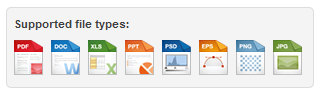
The following file formats can be uploaded and displayed in Conceptboard:
- Portable Document Format (.pdf)
- Bitmap (.bmp, .wbmp)
- Portable Networks Graphic (.png)
- JPEG (.jpg, .jpeg)
- Tagged Image File Format (.tiff)
- Text Formats (.doc, .docx, .odt, .rtf, .txt, .wpd, .sxw)
- Spreadsheet Formats (.xls, .xlsx, .ods, .csv, .tsv, .sxc)
- Presentation Formats (.ppt, .pptx, .odp, .sxi)
- Photoshop Document (.psd)
- Adobe Illustrator files (.eps, .ai, .svg - only original .svg are supported, subtypes i.e. .svgxml cannot be shown on boards)
File Upload Size
Conceptboard implements size limits for each individual file that can be uploaded to a board:
- 10MB limit for free accounts,
- 25MB limit for Starter plan accounts, and
- 50MB limit for Advanced accounts
If you are part of a Corporate or Special Plan team account, restrictions do not apply.
You do not need the original file to be available for download? If you are using Google Chrome, you can directly paste screenshots and content from external applications into the board.
Unsupported File Formats
Files in formats that are not supported can still be uploaded onto a board but will not appear in the working area. Instead, they can be accessed via the 'Downloads & export' dialog of the Attachment tab in the Board menu, or by clicking the downloads icon when hovering over a board tile in the boards overview page.
For example, if you need to attach a zip file, dragging it into the board will add it to the Attachments folder for easy download. For more info on managing board downloads, check out the FAQ.
Troubleshooting
It can happen that the imported document on your board looks different than its source file. This may be due to special fonts or formatting. Please try changing the fonts and formatting or contact our support team.
Embed Content
The embedded content feature allows Conceptboard users to add external content to their boards via the insert menu. This feature brings new functionality to the boards, without the need of building fully native Conceptboard features. For example, you are now able to enter a spreadsheet file via Embedded content and use it as a table.
Web Images
Conceptboard introduces web images. It enables users to search and insert images and gifs from public image libraries.
Administrators have the option to enable/disable Web images as a feature or each type of library and each Media library provider individually.